Quiz Builder Overview
The three panels and the top bar, how questions and votes fit together, and how saving works.
The Quiz Builder is the heart of ShopperQuiz. It's where you design every question, assign votes to products, and control exactly how shoppers experience your quiz. Everything — from the welcome screen to the final results — is configured here.
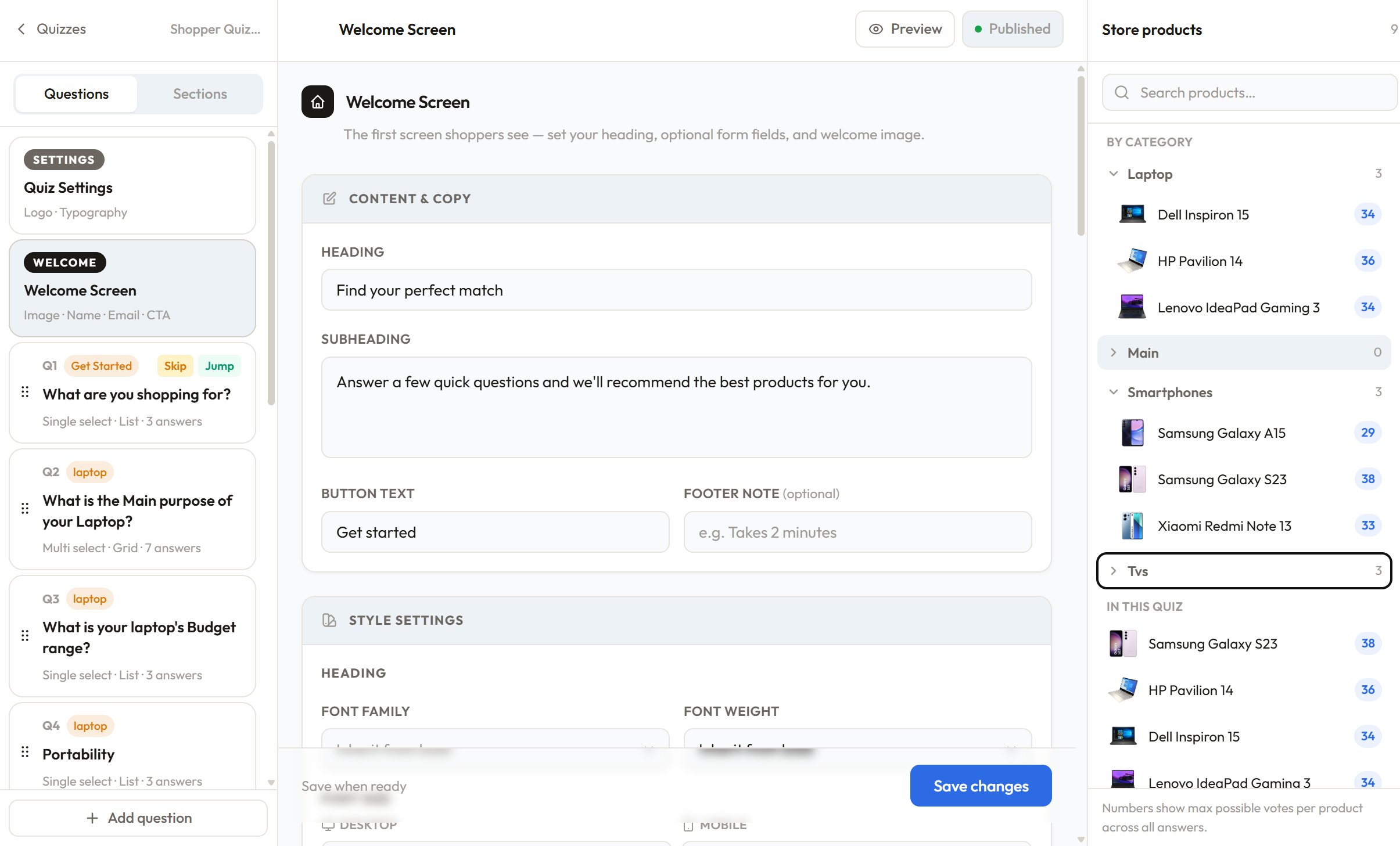
The three-panel layout
The Quiz Builder uses a three-panel layout designed to keep everything in view while you work.
Left panel — Question list A scrollable list of everything in your quiz, with two tabs: Questions and Sections. In the Questions tab, items always appear in this order: Quiz Settings at the top, then Welcome Screen, then your questions, then Results Screen at the bottom. An Add question button sits in the footer. Click any item to open it in the center panel. Questions can be dragged to reorder them.
Center panel — Editor This is where you edit. What renders here depends on what you've selected in the left panel — the Quiz Settings editor, Welcome Screen editor, a question editor, or the Results Screen editor.
Right panel — Store products Your full product catalog, organized by collections, tags, and individual products. Each product shows the most votes one shopper can give it — the best answer for that product on every question, following your skip and jump logic and respecting filters, price ranges and exclusions. This updates live as you assign votes, so you can see at a glance whether products are well-represented or being left out. See Vote Assignment for details.
The right panel can also show the Quiz check or Ana instead of the products. On smaller screens, the products panel collapses into a slide-in drawer accessible via the Products button.
The top bar
Above the editor:
- Ask Ana — opens Ana, who can build and edit the quiz by chat
- Questions and Products — open the question list and store products as drawers on smaller screens
- Quiz check — shows whether the quiz has problems, and opens the Quiz check panel
- Undo / Redo — step back and forward through your edits
- Preview — try the quiz as a shopper would. See Preview
- Publish — sets the quiz live. Shows Published once it is
What's in the question list
Quiz Settings — always at the top. Controls your quiz logo and typography. Opens the settings editor in the center panel.
Welcome Screen — directly below Quiz Settings. This is the first screen shoppers see before the quiz starts. Opens the welcome editor.
Your questions — listed in order between the Welcome Screen and Results Screen. Each shows its question number, section tag if assigned, question text, and any logic badges (filter, skip, jump). Drag to reorder.
Results Screen — always at the bottom. Controls layout, cart buttons, and fallback behavior. Opens the results editor.
The Sections tab
Switching to the Sections tab in the left panel lets you manage quiz sections — labels that group questions and appear above the progress bar as shoppers move through the quiz. You can add, rename, recolor, and delete sections here. Sections are purely visual and don't affect vote logic.
Question types
Each question has one of two types:
Single select — the shopper picks one answer and moves on. Best for questions where only one answer applies, like "What is your skin type?"
Multiple select — the shopper can pick more than one answer before continuing. You control the minimum and maximum number of selections. Best for questions like "What are your hair concerns?" where multiple things may apply.
Answer display styles
Answers can be displayed in four styles:
- Default — text-only answer buttons, clean and minimal
- Checkmarks — answers with a checkmark indicator, good for multiple select
- Icons — each answer has a small image thumbnail alongside the label
- Images — each answer has an uploaded image, good for visual choices like styles or shades
Vote assignment
This is the core mechanic. Every answer you create can be assigned votes for products. When a shopper selects that answer, those votes are added to a running total. At the end of the quiz, the products with the most accumulated votes become the recommendations.
Each answer can assign votes in one of four ways:
- To specific products individually
- To all products in a collection
- To all products with a specific tag
- To all products in the store (useful for "Not sure" type answers)
The right panel shows the most votes one shopper can give each product, so you always know which products are being favored.
Filter questions
A question can be marked as a filter question. When it is, the shopper's answer permanently eliminates products that don't match — regardless of how many votes those products accumulate from other questions.
For example: if you ask "Do you want a vegan product?" and the shopper selects Yes, all non-vegan products are removed from the results entirely, even if they had high votes from earlier questions. Filters run before votes are counted, and each filter question narrows the eligible product pool further.
Skip and jump logic
Each answer can carry logic that affects the quiz flow:
Skip — when this answer is selected, specific future questions are hidden and skipped. Votes from skipped questions are not counted.
Jump — when this answer is selected, the quiz jumps directly to a specific future question, bypassing everything in between.
Skip and jump are mutually exclusive per answer. Logic only moves forward, never backward.
Saving your quiz
The question editor, welcome editor, results editor, quiz settings and custom CSS each have a Save button, and clicking any of them saves all your unsaved changes across the quiz in one go — including changes made by Ana. Nothing auto-saves, so make sure to save after making changes. If you try to reload or leave the builder with unsaved changes, you're warned first.
A few actions save straight away without the Save button: adding a question or answer with the Add buttons, deleting a question or answer, and dragging to reorder.
If a save fails (for example your connection drops), a red note appears at the top of the editor and the changes stay unsaved on screen. Click Save again to retry.
Managing your quizzes
On the Quizzes page, each quiz has a three-dot menu at the end of its row (it appears when you hover over the row) with:
- Edit in Builder — open the quiz in the Quiz Builder
- Rename — change the quiz's name. Your storefront embed keeps working, because it uses the Quiz ID, not the name
- Copy styles from… — copy the look of another quiz (widget styles, welcome and results screens, quiz settings)
- Set Live, Pause or Move to Draft — change the quiz's status. Only Live quizzes load on your storefront
- Delete — permanently delete the quiz
Next steps
- Welcome Screen — configure what shoppers see before the quiz starts
- Questions and Answers — deep dive into question settings
- Vote Assignment — how votes work and how to assign them effectively
- Filter Questions — eliminate products based on shopper answers
- Skip & Jump Logic — control the quiz flow per answer
- Ana in the Builder — build and edit the quiz by chat
- Quiz Check — find problems before shoppers do
Was this page helpful?
Need more help? Open Ask Ana AI in your dashboard, or email support@shopper-quiz.com.