Answer Styles
Show answers as plain text, checkmarks, icons or images.
Each question has an answer display style that controls how the answer options look on the storefront. The style is set per question and applies to every answer in that question. You can change it at any time without losing your vote assignments.
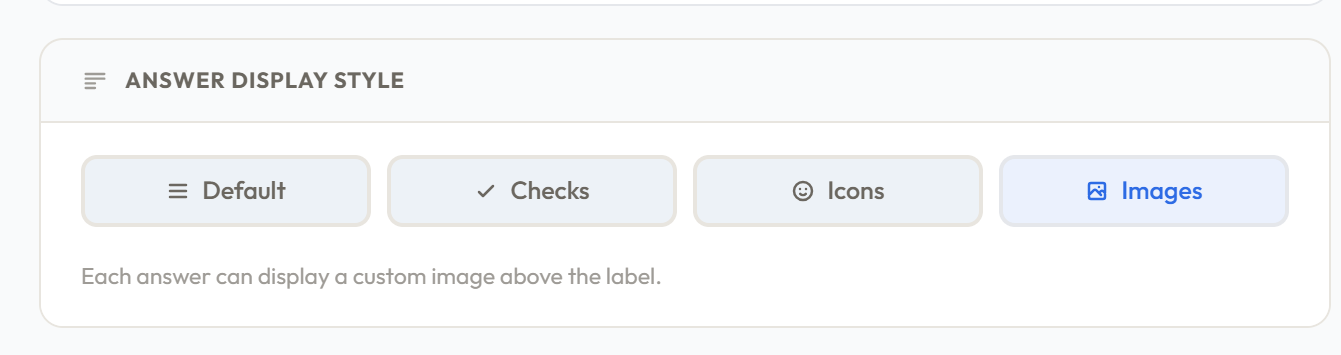
Default
Text-only answer buttons, clean and minimal. The answer label is displayed inside a bordered box. No icons, images, or checkmark indicators. Works well for any question type but is especially clean for single-select questions where the question moves on automatically.
Use this when the answer text is self-explanatory and there's nothing visual to add.
Checkmarks
Similar to Default but with a visible checkmark indicator on each answer. The checkmark is shown in the answer box — empty when unselected, filled when selected. The checkmark color follows the selected border color setting in Quiz Settings.
Checkmarks work particularly well for multiple select questions where shoppers need to see at a glance which answers they've already picked.
Icons
Each answer displays a picture rendered as a small circular thumbnail to the left of the answer label. You set the picture on each answer individually: expand its row in the Answer Options card and click Choose to pick a built-in line icon or an image from your image library, or paste a URL.
Icons work well when you want a small visual cue alongside the text — simple graphic symbols, ingredient close-ups or product photos. The built-in line icons (free on every plan) are the easiest way to get a clean, matching set. Because they render as small circular thumbnails, clean square images or ones with a transparent background work best.
The icon size and border radius are controlled under Answer options → Icons style in Quiz Settings.
Images
Each answer displays an image above the label. Images are set per answer: expand the row in the Answer Options card and click Choose to pick from your image library (or upload), or paste a URL.
Images work best for visual choices — hair textures, product styles, color swatches, lifestyle photos, fabric types. When answers represent something the shopper needs to see rather than read, images are almost always the right choice.
Images are 240px tall by default on desktop and mobile. You can change the height, choose whether images fill and crop or show whole, and pick which part stays in view when cropping, under Answer options → Images style in Quiz Settings.
The image layout works best in Grid mode (2 columns). In List mode, images stack vertically, which can feel heavy.
When to use each style
| Style | Best for |
|---|---|
| Default | Simple text answers, single select questions |
| Checkmarks | Multiple select questions where selections need to be visible |
| Icons | Small circular image thumbnails alongside the label |
| Images | Visual choices — styles, textures, colours, looks |
The style is a presentation choice only. It has no effect on vote assignments, filter logic, or skip/jump logic.
Was this page helpful?
Need more help? Open Ask Ana AI in your dashboard, or email support@shopper-quiz.com.