Preview
Try the quiz exactly as a shopper would before you publish it.
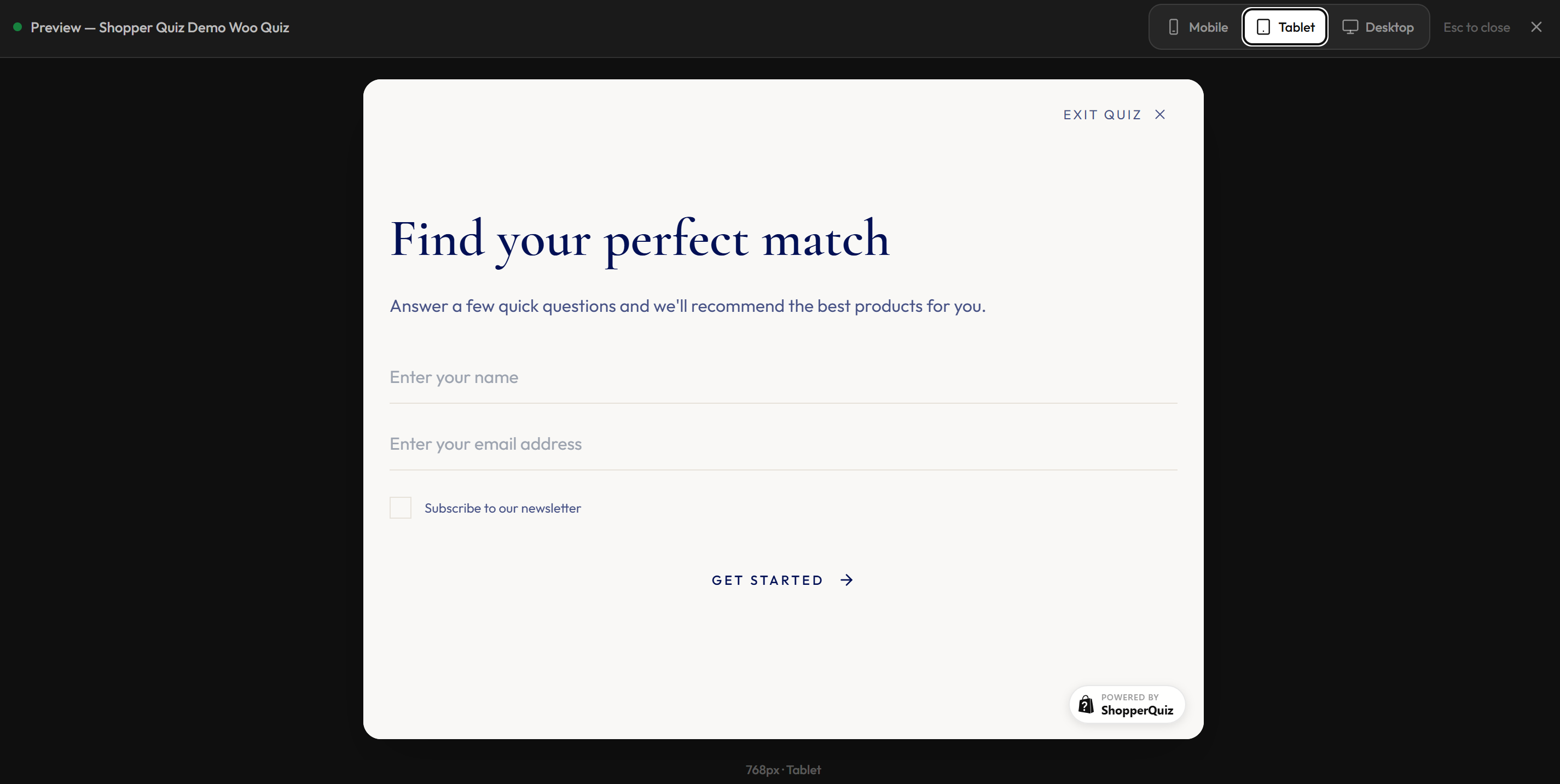
The Preview lets you see your quiz exactly as shoppers will experience it on the storefront, without publishing any changes. It opens as a full-screen overlay directly inside the Quiz Builder.
To open it, click Preview in the bottom action bar of any question editor.
What the preview shows
The preview renders the actual quiz widget — the same code that runs on your storefront — loaded with your current quiz data. It reflects everything you have configured: welcome screen content and styling, all questions and answers in their current order, quiz settings and typography, and your results screen copy and button settings.
The preview uses a live snapshot of your quiz as it currently stands in the editor, including unsaved changes. You do not need to save before previewing.
Viewport switcher
The top bar has three viewport options:
Mobile — renders the widget at 390px wide, matching a typical phone screen.
Tablet — renders at 768px wide.
Desktop — renders at 1280px wide.
Switch between them at any time to check how the quiz looks and behaves at different screen sizes. The widget height fills the available screen height in all viewports.
Closing the preview
Click the × button in the top right corner, or press Escape to close the preview and return to the builder.
Saving
The preview does not save anything. Changes made in the builder before opening the preview are reflected immediately, but you still need to click Save changes in the builder to persist them.
Was this page helpful?
Need more help? Open Ask Ana AI in your dashboard, or email support@shopper-quiz.com.